Broadcast Files to Every Room Instantly
RoomDrop is a conference file distribution system that lets you send presentations, documents, and media files from a central Speaker Ready desk to multiple conference rooms simultaneously. No internet required — everything runs over your local network with automatic room discovery.
Screenshots
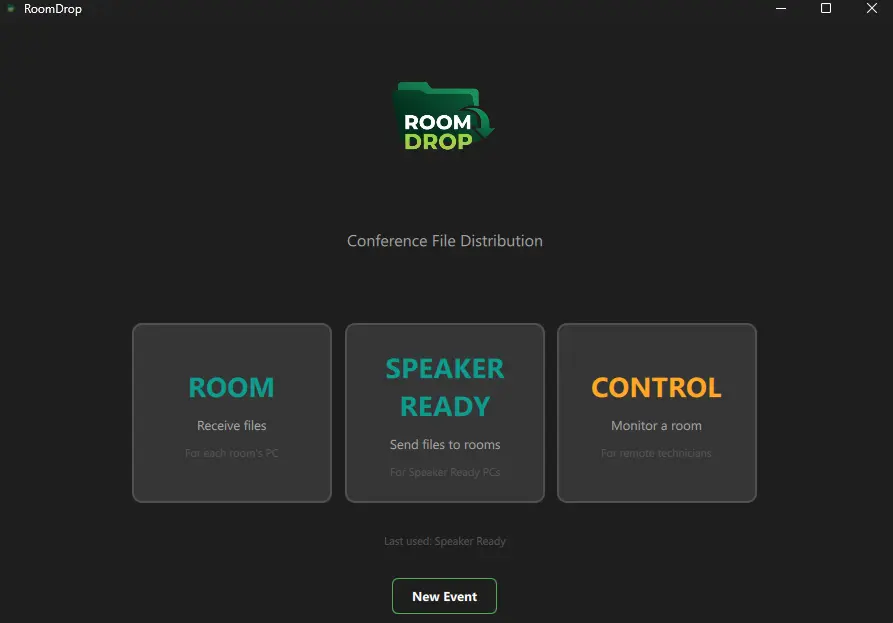
Mode Selector
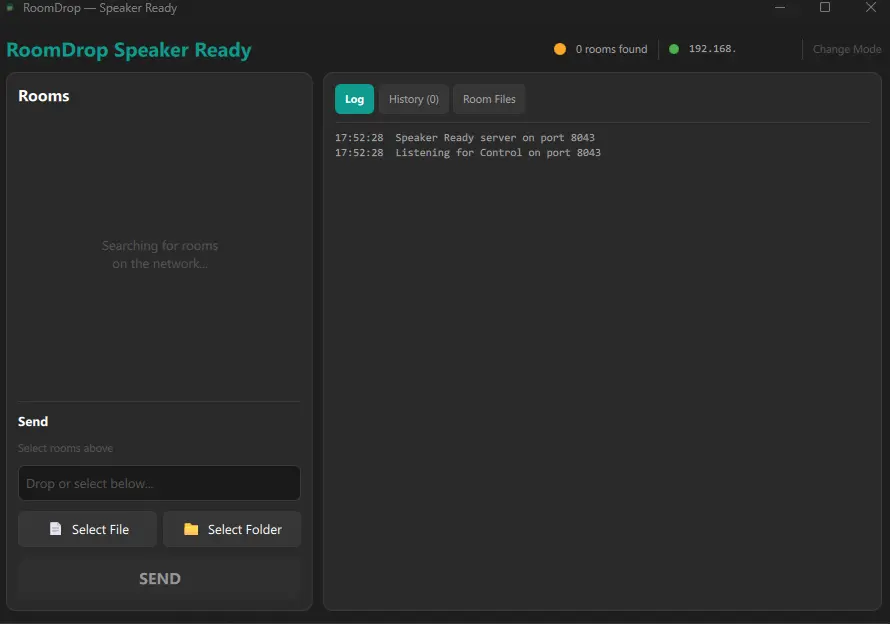
Speaker Ready Mode
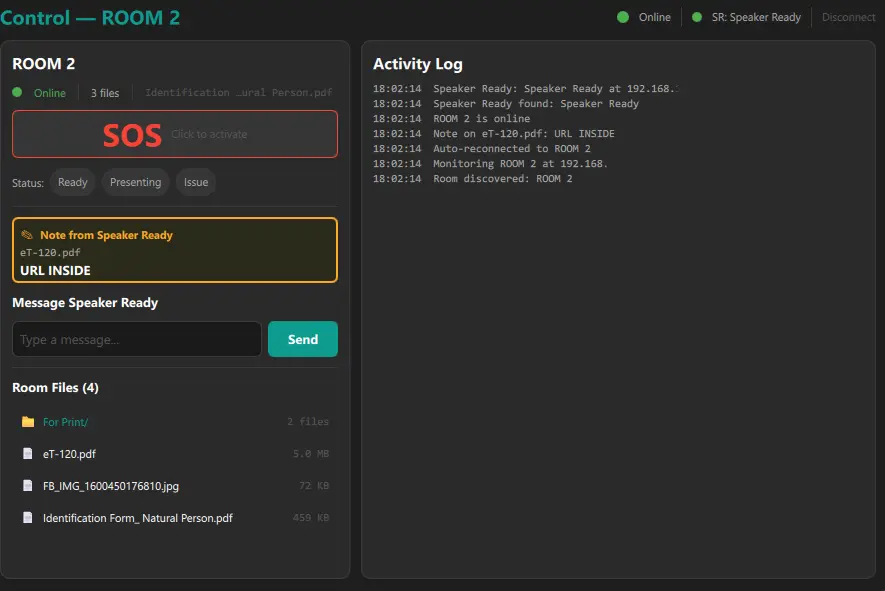
Control Mode
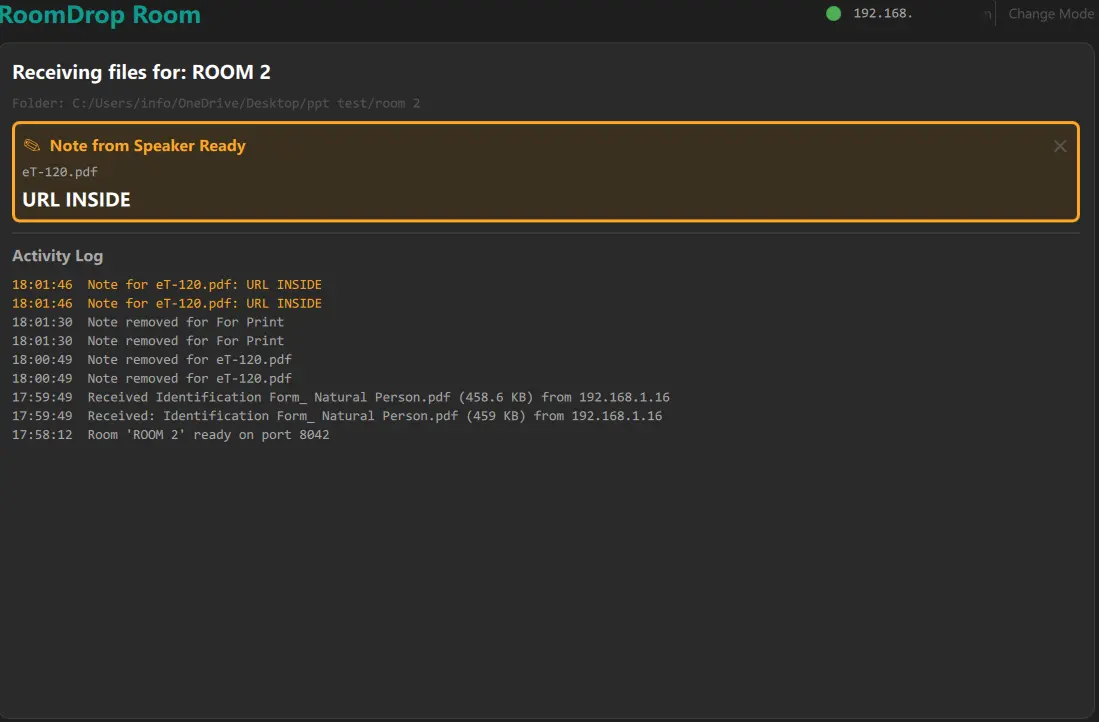
Note Banner on Room PC
Three Modes, One App
Speaker Ready Mode
Central file sender with automatic room discovery, multi-room selection, drag & drop, real-time transfer progress, remote file browsing, and two-way messaging with Control.
Room Mode
Room receiver that advertises itself on the network via mDNS. Set a room name, choose a receive folder, and minimize to system tray for always-on operation.
Control Mode
Live room monitoring from a separate control position. Connect to any room, trigger SOS alerts, set room status, send messages to Speaker Ready, browse room files, and see file notes — all in real time.
Key Features
SOS Alerts
Trigger per-room SOS from Control mode. Speaker Ready sees a flashing alert banner per room with the sender name and timestamp. Multiple rooms can have SOS active simultaneously.
Two-Way Messaging
Control sends messages to Speaker Ready via the room relay. Speaker Ready can reply directly. Messages appear as prominent banners so nothing gets missed during a live event.
Room Status Indicators
Control can set each room's status to Ready, Presenting, or Issue. Status badges update in real time on both Control and Speaker Ready for instant situational awareness.
Automatic Room Discovery
Rooms appear instantly using Zeroconf/mDNS. No IP addresses, no configuration — just start the app and rooms show up on the network.
Multi-Room Broadcast
Send files to one, several, or all rooms at once with checkbox selection. Select All / Deselect All for quick bulk operations across every room in the venue.
Drag & Drop Files & Folders
Drag files or entire folder structures onto the sender window. Supports presentations (.pptx, .pdf, .key), documents, media, and files up to 1 GB each.
Transfer Progress & Speed
Real-time progress bar with percentage, transfer speed (MB/s), and ETA for every file. 64 KB streaming chunks — no memory bloat on large transfers.
Remote File Browser
Browse files on any room PC from Speaker Ready or Control. Navigate folders with breadcrumbs, view file sizes, folder counts, and inline note indicators.
Remote Delete & Download
Delete files from room PCs remotely with confirmation, or download any file back to Speaker Ready. Manage room content without leaving your desk.
File Notes
Attach text notes to any file from Speaker Ready. Notes appear as warning banners on both the Room PC and in Control mode, so operators and controllers always see instructions.
New Event Reset
One-click New Event button clears all saved rooms, folders, notes, messages, and server state. Start fresh for every event without reinstalling or manual cleanup.
Transfer History & Activity Log
Complete history of all sent files grouped by room. Room PCs display a live activity log with timestamps, filenames, sizes, and sender info. Up to 500 entries.
Remote Presentation Launch
Open PowerPoint, PDF, and video files in fullscreen on the room PC directly from Control. Supports PDF2Screen and Second Screen Player. Close presentations remotely with one click.
Group Isolation
License-based group keys ensure only your rooms are visible on the network. Multiple organizations on the same LAN never see each other's rooms or files.
System Tray
Minimizes to system tray instead of closing — perfect for always-on room PCs. Remembers last mode, room name, and folder between sessions.
No Internet Required
Works entirely on your local network. No cloud services, no accounts, no external dependencies. Your files never leave the venue.
Perfect For
- Multi-room conferences and corporate events
- Convention centers with breakout sessions
- AV and production teams distributing presentations
- Stage managers and control rooms monitoring live sessions
- Training centers with multiple classrooms
- Houses of worship with multiple venues
- Any venue where files need to reach multiple rooms fast
How It Works
- Install RoomDrop on the Speaker Ready PC, each room PC, and any control positions
- Start in Room mode on room PCs — set a name, choose a folder, and they advertise themselves on the network
- Start in Speaker Ready mode on the file desk — rooms appear automatically
- Drag files onto the sender, select target rooms, and hit Send
- Files arrive in each room's designated folder within seconds
- Start in Control mode to monitor rooms, send SOS alerts, and communicate with Speaker Ready
Network Requirements
RoomDrop works over your local network (LAN). All PCs — Speaker Ready, Control, and every room — must be connected to the same network. No internet connection is needed.
- Wired (Ethernet): All PCs connected to the same switch or router
- Wi-Fi: All PCs on the same wireless network (same SSID)
- Mixed: Some wired, some on Wi-Fi — works as long as they share the same network
RoomDrop uses automatic network discovery (mDNS) to find rooms on the LAN. It does not work across separate internet connections, different buildings with separate networks, or over VPN. All devices must be on the same local network at the venue.
Important: Some networks block device-to-device communication for security reasons. If devices cannot discover each other:
- Ask the venue’s IT department to disable client isolation (also called AP isolation) on the WiFi network
- If that’s not possible, connect all devices to a mobile hotspot — this creates a private network with no restrictions
Why Choose RoomDrop?
USB sticks get lost, email attachments fail, and cloud services need internet. RoomDrop solves the "get this file to Room 3" problem once and for all. With built-in SOS alerts, two-way messaging, and real-time room monitoring, it's a complete communication and file distribution system built for the reality of live events.
System Requirements
- Windows: Windows 10 or later (64-bit)
- macOS: Coming Soon
- RAM: 4 GB minimum
- Network: Local network (LAN/Wi-Fi) between sender and room PCs
- Display: 1280 x 720 minimum