CueRemote Manual
Complete guide to LAN remote desktop for live events
Contents
1. Overview
CueRemote is a LAN remote desktop tool built for conferences, live events, and production environments. It runs entirely on your local network — no internet, no cloud, no accounts. One app with two modes covers your entire workflow:
- Host Shares this PC's screen so others can view and control it. Runs on the machine you want to access remotely.
- Viewer Connects to a Host and displays its screen in real time with full mouse and keyboard control.
Both modes discover each other automatically on the network using Room Codes for group isolation. No IP addresses to configure — just start the app, pick a mode, and go.
2. Getting Started
Installation
- Download CueRemote from the download page and run the installer on every PC that will participate (host PCs and viewer PCs).
- Launch CueRemote. You will be prompted for a license key on first run. Enter your key to activate.
- Choose a mode from the Mode Selector screen. Your choice is remembered between sessions.
Typical Setup
| Presentation PC | The machine running your presentation, playout software, or media server. Set to Host mode. |
| Control position | Backstage desk, control room, or any operator position. Set to Viewer mode to see and control the Host remotely. |
3. Mode Selector
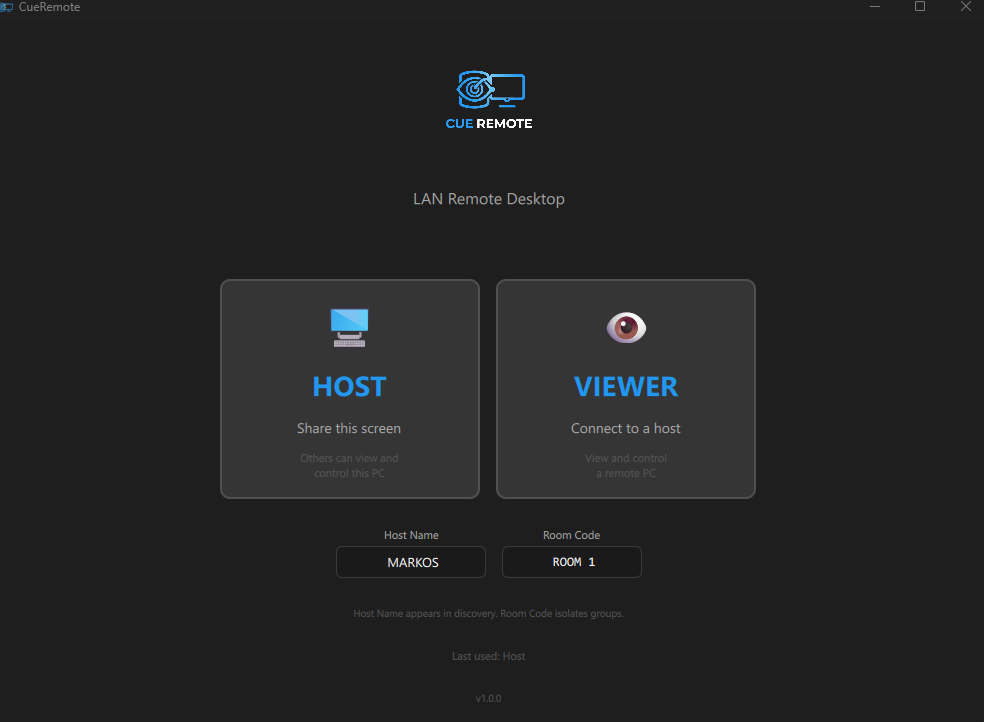
The Mode Selector is the first screen you see after launch. It shows two cards: Host and Viewer.
Host Name
Set a friendly name for your machine (e.g. "MARKOS", "Stage PC", "Media Server"). This name appears in the Viewer's discovery list so operators can identify machines at a glance.
Room Code
The Room Code isolates your group on the network. Only Hosts and Viewers with the same Room Code can see each other. This means multiple organizations at the same venue on the same network won't interfere with each other.
4. Host Mode
Host Host mode shares your screen and accepts incoming viewer connections. Run this on the PC you want to control remotely.
Starting the Host
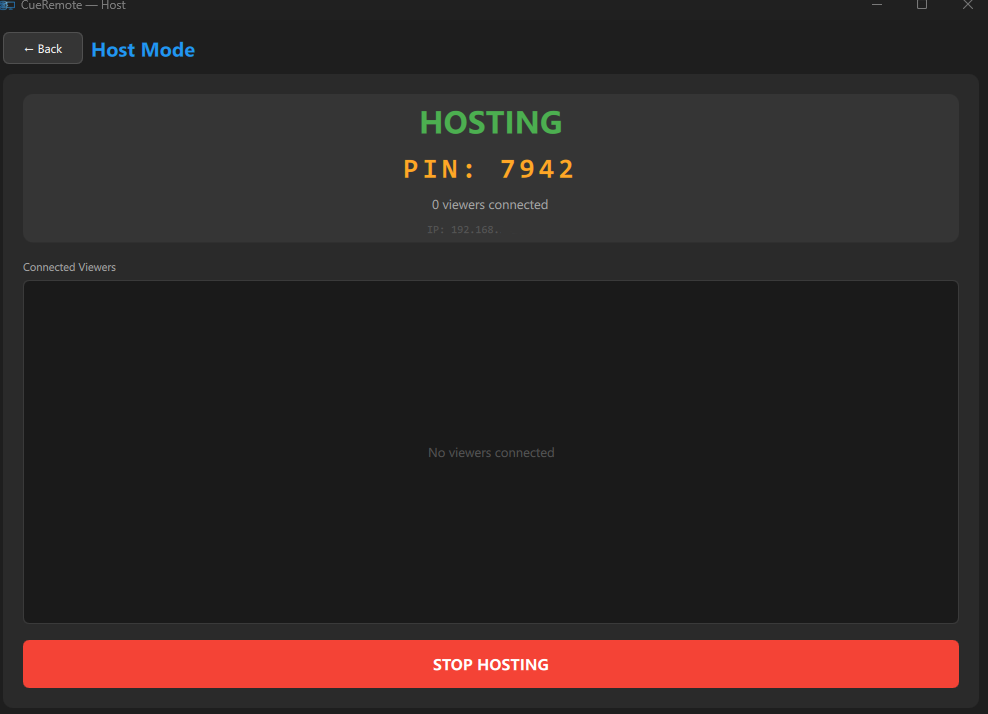
- Click Host on the Mode Selector. The host server starts automatically and begins advertising on the network.
- A PIN is displayed on screen. Share this PIN with viewers so they can authenticate their connection.
- Your IP address is shown below the PIN for manual connections if auto-discovery is unavailable.
What You See
- HOSTING banner — confirms the host server is running
- PIN — 4-digit code that viewers must enter to connect. The PIN persists across app restarts so you don't need to update viewers after a reboot.
- Viewer count — shows how many viewers are currently connected
- IP address — your local network address for manual connections
- Connected Viewers — list of all connected viewer names
- Stop Hosting — red button to stop sharing and disconnect all viewers
5. Viewer Mode
Viewer Viewer mode connects to a Host and displays its screen in real time. You can see and control the remote PC as if you were sitting in front of it.
Connecting to a Host
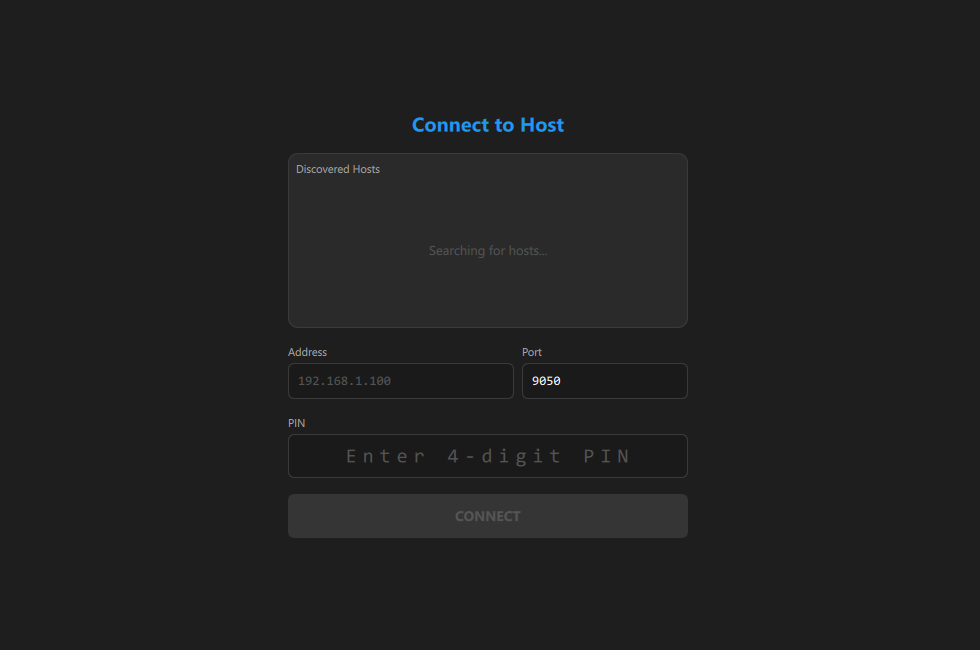
- Click Viewer on the Mode Selector. The viewer starts scanning for available hosts on the network.
- Discovered Hosts appear automatically in the list. Click on a host name to select it — the address and port fields are filled in automatically.
- Enter the 4-digit PIN displayed on the host screen.
- Click Connect. The remote screen appears and you have full control.
Manual Connection
If auto-discovery doesn't find the host (e.g. on networks that block multicast), you can connect manually:
- Enter the host's IP address in the Address field (shown on the host screen).
- The default Port is 9050. You can also select 443 or enter a custom port. Only change this if the host is using a different port.
- Enter the PIN and click Connect.
Auto-Reconnect
If the connection drops (e.g. the host restarts), the viewer automatically attempts to reconnect. Once the host is back online, the connection resumes without manual intervention.
6. Remote Control
Once connected, the viewer has full mouse and keyboard control over the host PC.
Mouse
- Click — left click, right click, and middle click are all supported
- Double-click — works as expected
- Scroll — mouse wheel scrolls the remote screen
- Drag — click and drag to move windows, select text, etc.
Keyboard
- All standard keys are forwarded to the host
- Special keys (Ctrl, Alt, Shift, Tab, Enter, arrow keys, function keys) all work
- Keyboard shortcuts (e.g. Ctrl+C, Ctrl+V) are sent to the remote PC
7. Multi-Monitor Support
If the host PC has multiple monitors, the viewer can switch between them.
Switching Monitors
The viewer controls which monitor is being shared. Use the monitor selector in the viewer toolbar to switch between the host's available screens. The switch is instant — the viewer sees the new monitor immediately.
Mouse Coordinates
Mouse input is automatically mapped to the correct monitor. When you switch monitors, mouse coordinates are adjusted so clicks land exactly where you expect them on the host's selected screen.
8. Clipboard Sharing
CueRemote automatically syncs the clipboard between host and viewer. When you copy text on the host, it becomes available on the viewer, and vice versa.
- Text only — clipboard sync works for text content
- Automatic — no action needed, clipboard changes are detected and synced in the background
9. Network & Discovery
How Discovery Works
CueRemote uses Zeroconf/mDNS to automatically discover hosts on the local network. When a Host starts, it advertises a service on the network. Viewers browse for these services and display them automatically in the Discovered Hosts list.
Room Code Isolation
The Room Code filters discovery so only hosts and viewers with the same code see each other. This means:
- Multiple organizations at the same venue on the same network won't interfere
- Each group only sees their own hosts
- No configuration needed — isolation is automatic based on the Room Code
Network Requirements
- Same network: All PCs must be on the same LAN (wired, Wi-Fi, or mixed)
- mDNS traffic: Multicast DNS (port 5353) must not be blocked by the network
- WebSocket traffic: CueRemote uses WebSocket on port 9050 (default), 443, or a custom port for screen streaming and control
- No internet required: Everything works offline
Adaptive Streaming
CueRemote automatically adjusts image quality and frame rate based on network conditions. On a fast LAN, you get maximum quality. If the network becomes congested, quality and frame rate are reduced to maintain a responsive connection. When the network recovers, quality ramps back up automatically.
10. Troubleshooting
Host not appearing in Discovered Hosts
- Verify both PCs are on the same network (same switch/router/SSID)
- Check that the Host has clicked Host and is showing the HOSTING screen with a PIN
- Ensure both Host and Viewer are using the same Room Code
- Ensure the Windows Firewall is not blocking CueRemote. Allow it through the firewall when prompted on first run
- Check that multicast/mDNS traffic (port 5353) is not blocked by the network
- Try connecting manually using the host's IP address
Connection drops or freezes
- CueRemote auto-reconnects when the connection drops — wait a few seconds
- If the host PC rebooted, the viewer will reconnect automatically once the host is back online
- On congested networks, CueRemote automatically reduces quality to maintain the connection
- Check that no other application is using excessive bandwidth on the network
Black screen or missing windows
- Elevated/admin windows (installers, UAC prompts) are blocked by Windows security
- Run CueRemote as Administrator on the host PC to capture elevated windows
Mouse clicks landing in the wrong place
- Ensure you are viewing the correct monitor (check the monitor selector)
- If the host's display scaling is different from 100%, coordinates may be slightly off — try setting display scaling to 100% on the host
Keyboard input not working
- Click on the remote screen view to ensure it has focus
- If you switched to another application on the viewer PC, click back on the CueRemote window
App not starting
- Ensure Windows 10 or later (64-bit) is installed
- Check that no other application is using the selected port (9050 by default)
- Try running as Administrator if the app fails to bind to the network