CueLink Manual
Complete guide to LAN AV streaming for live events
Contents
1. Overview
CueLink is a LAN AV streamer that sends live camera video and audio to any device on your local network. It runs entirely on your local network — no internet, no cloud, no accounts. Three ways to watch:
- Sender Captures camera video and microphone audio, streams to the network.
- Receiver Dedicated app mode that connects to a Sender and displays full-screen video with audio.
- Browser Any device with a web browser can watch by opening the stream URL. No installation needed.
One PC runs the Sender with a camera. Every other screen in the building watches — either through the Receiver app or any web browser.
2. Getting Started
Installation
- Download CueLink from the download page and run the installer.
- Launch CueLink. The app opens in Free mode — no license key needed to start using it.
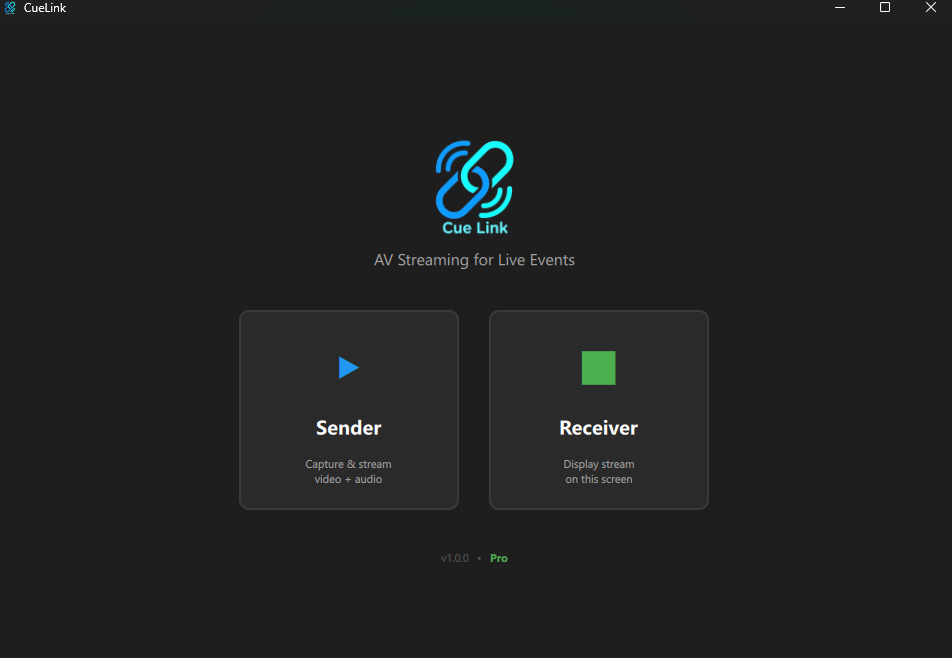
- Choose Sender or Receiver from the mode selector.
Typical Setup
| Camera PC | The laptop or PC with the camera and microphone plugged in. Set to Sender mode. |
| Display PC | A PC connected to a lobby TV or overflow room monitor. Set to Receiver mode, or simply open the stream URL in a browser. |
| Phones / Tablets | Open the stream URL in any browser — Chrome, Safari, Edge, Firefox. No app needed. |
3. Sender Mode
Sender Sender mode captures video and audio and streams it to your local network.
Starting a Stream
- Click Sender on the mode selector.
- Select your Video Source (camera) from the dropdown and click Start Camera. The live preview appears on the left.
- Select your Audio Source (microphone) from the dropdown and click Start Audio. The VU meter activates next to the preview.
- Click Start Streaming. The status changes to LIVE and a URL is displayed (e.g. http://192.168.1.50:8090).
- Share this URL with anyone on the network. They open it in a browser to watch.
What You See
- Preview — live camera feed on the left
- VU meter — vertical audio level meter in dB scale (green/yellow/red), visible when audio is capturing
- LIVE / OFFLINE — status badge in the top-right corner, pulses red when streaming
- Stream URL — shown below the Start Streaming button, with a Copy button
- Viewer count — shows how many devices are currently watching
- FREE / PRO — badge in the top bar showing your license tier
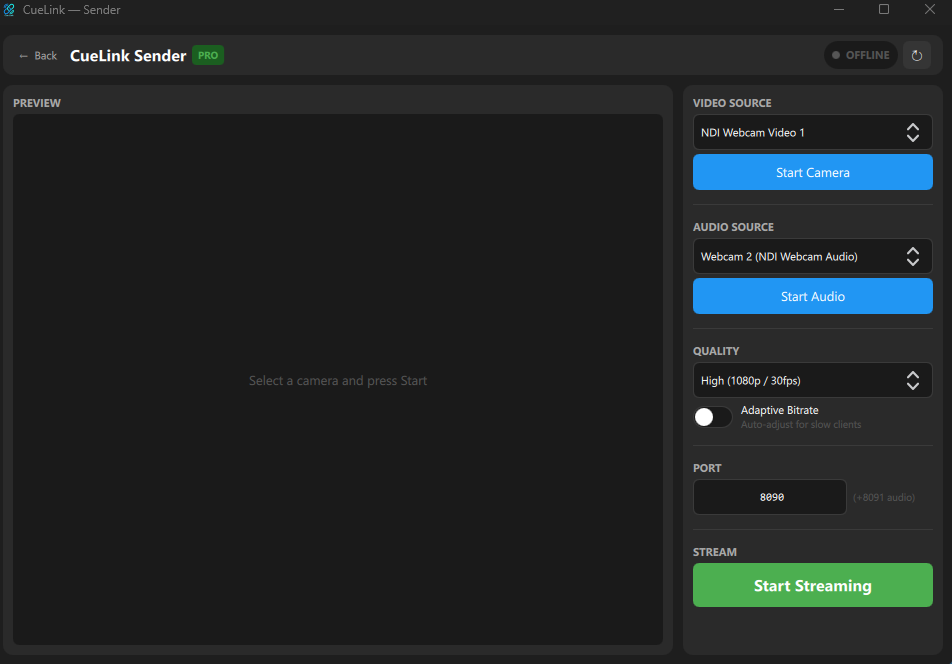
Controls Panel
- Video Source — dropdown to select camera, Start/Stop Camera button
- Audio Source — dropdown to select microphone, Start/Stop Audio button
- Quality — preset selector (High / Balanced / Low Bandwidth)
- Adaptive Bitrate — toggle to auto-adjust quality based on viewer performance PRO
- Port — custom port field (default 8090, audio uses port + 1) PRO
- Stream — Start/Stop Streaming button, URL display, viewer count
Refresh Devices
Click the ↻ button in the top bar to rescan for cameras and microphones. Useful if you plug in a new USB camera while the app is running.
4. Browser Viewer
Browser Any device with a web browser can watch the stream without installing anything.
How to Watch
- On the Sender, note the stream URL (e.g. http://192.168.1.50:8090).
- On any device connected to the same network, open that URL in a web browser.
- The video feed appears immediately. An "Tap to start audio" overlay appears — tap or click it to enable audio.
Browser Compatibility
The browser viewer works with any modern browser: Chrome, Firefox, Safari, Edge. It uses standard MJPEG for video (displayed as an <img> tag) and Web Audio API for audio (via WebSocket). No plugins or extensions needed.
Audio Autoplay
Browsers require a user gesture (tap or click) before playing audio. This is a browser security policy, not a CueLink limitation. The "Tap to start audio" overlay handles this — once tapped, audio plays continuously.
5. Receiver Mode
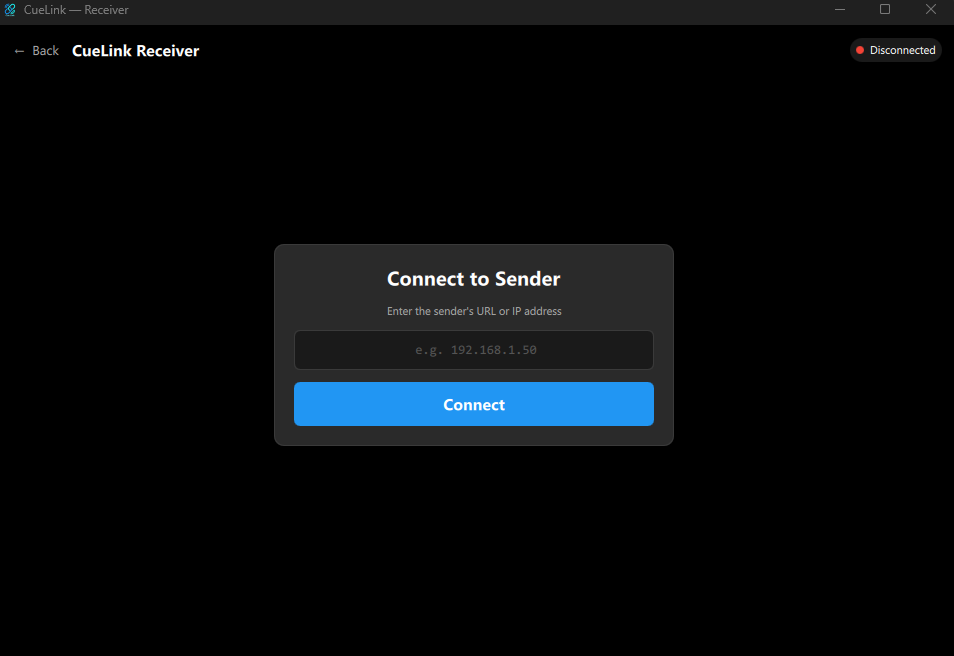
Receiver Receiver mode is a dedicated viewer built into CueLink. Use it on PCs connected to TVs or projectors where you want a clean, app-based display instead of a browser.
Connecting to a Sender
- Click Receiver on the mode selector.
- Enter the Sender's URL (e.g. 192.168.1.50:8090 or just 192.168.1.50 — the default port is added automatically).
- Click Connect. The live video stream appears with audio.
6. Audio Streaming
CueLink streams audio alongside video. Audio is captured from any microphone or audio input on the Sender PC and delivered to viewers via WebSocket.
VU Meter
The vertical VU meter appears next to the camera preview when audio capture is active. It shows:
- Green — normal audio levels
- Yellow — loud, approaching clipping
- Red — clipping / too loud
The meter uses a dB scale (from -60 dB to 0 dB) with smooth decay for a professional broadcast feel. Scale markers are shown at 0, -10, -20, -30, -40, and -60 dB.
Audio is Free
Audio streaming is included in the free version of CueLink. No Pro license required.
7. Quality & Adaptive Bitrate
Quality Presets
| Preset | Resolution | FPS | Tier |
|---|---|---|---|
| High | 1920 × 1080 | 30 | PRO |
| Balanced | 1280 × 720 | 30 | Free |
| Low Bandwidth | 854 × 480 | 15 | Free |
Free users can choose Balanced or Low Bandwidth. Pro unlocks the High (1080p) preset.
Adaptive Bitrate PRO
When enabled, CueLink monitors how well each viewer keeps up with the stream. If a viewer falls behind (e.g. on a slow Wi-Fi connection), JPEG compression quality is automatically reduced to keep the stream smooth. When viewers catch up, quality is restored.
The current adaptive quality percentage is shown next to the toggle. The system checks every 2 seconds and adjusts gradually — quality drops quickly when needed and recovers slowly to avoid oscillation.
8. Free vs Pro
CueLink works out of the box in Free mode. Pro unlocks additional features for professional use.
| Feature | Free | Pro |
|---|---|---|
| Video streaming | 720p max | 1080p+ |
| Audio streaming | ✓ | ✓ |
| Connected viewers | 1 | Unlimited |
| Quality control | Fixed | Full |
| Adaptive bitrate | — | ✓ |
| Custom port | — | ✓ |
| Browser viewer | ✓ | ✓ |
Pro is an annual subscription. Pricing:
- €10/year — 1 device license
- €15/year — 2 device licenses
When a free user's viewer limit is reached, additional viewers see a "Client Limit Reached" page instead of the stream, with a message to upgrade to Pro.
9. License Activation
Activating Pro
- Purchase a CueLink Pro license from cuecongress.com. You will receive a license key by email.
- In CueLink, click the Free badge (on the mode selector or in the Sender top bar) to open the license dialog.
- Enter your license key in the format XXXX-XXXX-XXXX-XXXX and click Activate Pro.
- The badge changes to PRO and all Pro features are unlocked immediately.
Deactivating
To move your license to a different PC, open the license dialog and click Deactivate. This frees up a device slot so you can activate on another machine.
Offline Grace Period
CueLink validates your license online. If the internet is unavailable, the app enters Offline Mode and continues working in Pro mode for up to 7 days. After 7 days without a successful validation, Pro features are disabled until connectivity is restored.
Device ID
Each PC gets a unique 8-character Device ID (shown in the license dialog). This identifies the machine for license management. If you need support, include your Device ID.
10. Network Requirements
Supported Configurations
- Wired (Ethernet): All devices on the same switch or router
- Wi-Fi: All devices on the same wireless network (same SSID)
- Mixed: Sender on Ethernet, viewers on Wi-Fi (or vice versa) — as long as they share the same network
Ports Used
| Port | Protocol | Purpose |
|---|---|---|
| 8090 (default) | HTTP | MJPEG video stream + browser viewer page |
| 8091 (default) | WebSocket | Audio stream |
The audio port is always the video port + 1. If you change the video port to 9000, audio uses 9001. Port configuration is a Pro feature.
Firewall
The first time you start streaming, Windows may ask to allow CueLink through the firewall. Click Allow. If you accidentally block it, add CueLink manually in Windows Firewall settings.
Client Isolation
Some venue Wi-Fi networks block device-to-device communication (called client isolation or AP isolation). If viewers cannot connect to the Sender:
- Ask the venue's IT team to disable client isolation
- Or connect all devices to a mobile hotspot as a quick workaround
11. Troubleshooting
No cameras or microphones detected
- Ensure your camera/microphone is plugged in before launching CueLink
- Click the ↻ refresh button in the top bar to rescan devices
- Check that the device is not being used by another application (e.g. Zoom, Teams)
- USB capture cards must be DirectShow compatible
Viewers cannot connect
- Verify the Sender is streaming (LIVE badge should be blinking red)
- Ensure all devices are on the same network
- Check that Windows Firewall is not blocking CueLink
- Try entering the URL manually: http://[sender-ip]:8090
- If using a venue network, check for client isolation (see Network section)
"Client Limit Reached" message
- The free version supports 1 viewer at a time
- Disconnect the current viewer before connecting a new one, or upgrade to Pro for unlimited viewers
No audio in browser
- Click or tap the "Tap to start audio" overlay — browsers require a user gesture to play audio
- Ensure audio capture is started on the Sender (VU meter should be active)
- Check that your browser is not muted (tab mute or system volume)
Video is choppy or low quality
- Switch to a lower quality preset (Balanced or Low Bandwidth)
- If on Wi-Fi, move closer to the access point or switch to a wired connection
- Enable Adaptive Bitrate (Pro) to let CueLink auto-adjust quality
- Reduce the number of concurrent viewers if the Sender PC or network is overloaded
Port conflict
- If another service uses port 8090, change the port in the Port section (Pro feature)
- Remember to update the URL you share with viewers to reflect the new port
App not starting
- Ensure Windows 10 or later (64-bit) is installed
- Try running as Administrator if the app fails to start
License activation fails
- Check your internet connection — activation requires a one-time online check
- Verify the license key format: XXXX-XXXX-XXXX-XXXX (letters and numbers only)
- If you see "Maximum device limit reached", deactivate the license on another PC first
- Contact support at cuecongress.com with your Device ID