
Slide Timer Manual
Complete guide to the dual-screen presentation timer
Contents
1. Overview
Slide Timer is a dual-screen presentation timer for conferences and live events. Unlike traditional timers, it does not display your slides — you keep using PowerPoint, Adobe Acrobat, or any PDF reader as normal, while Slide Timer shows a clean floating timer on top of everything.
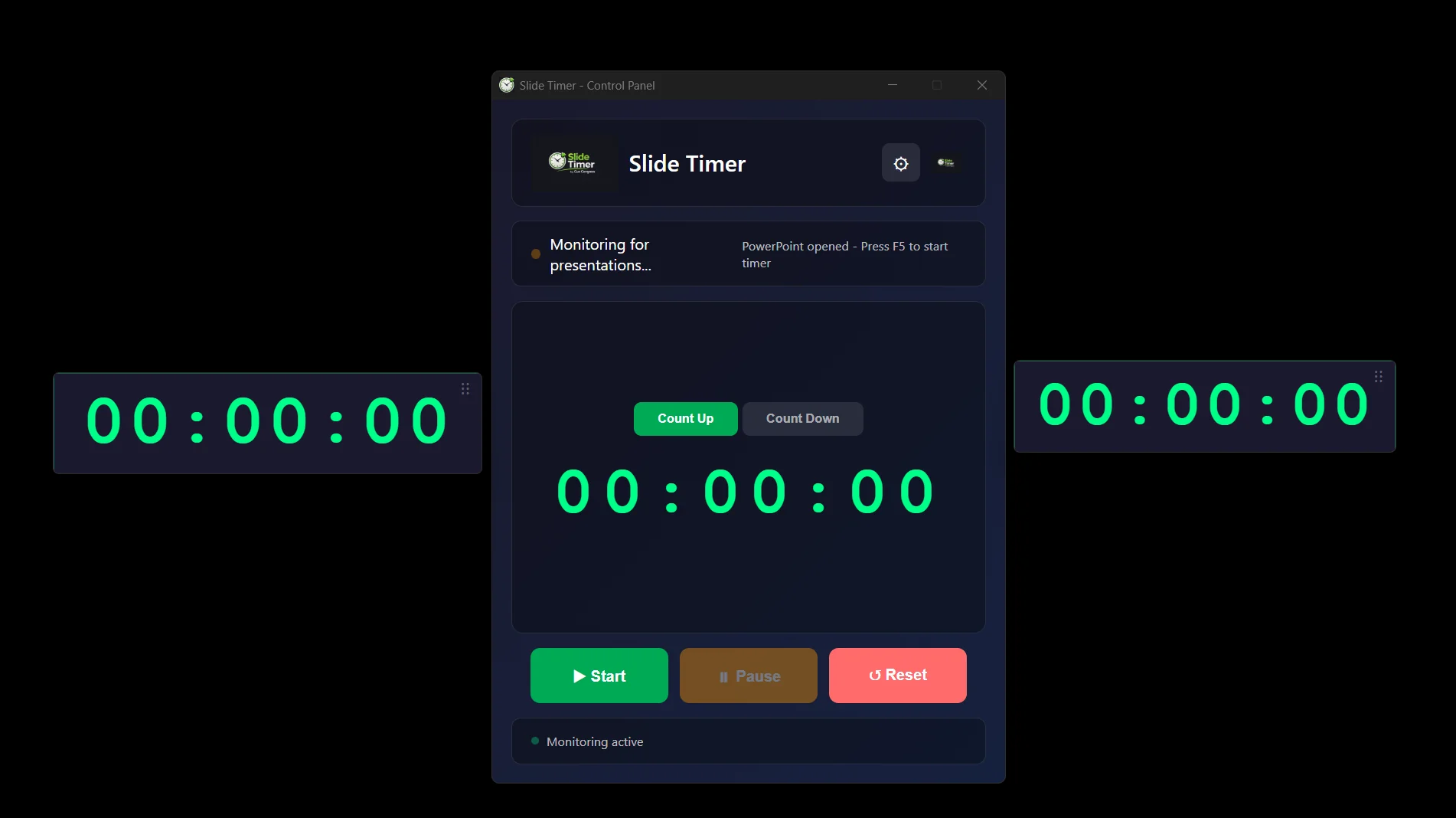
It runs as three windows:
- Control Panel — the small window where you start, pause, reset, and configure the timer.
- Speaker Timer — a floating timer on your primary monitor, for the presenter to see.
- Audience Timer — a floating timer on your second monitor, for the audience.
Slide Timer can automatically detect when you enter a PowerPoint slideshow or a fullscreen PDF and start timing for you — or you can run it fully manually.
2. Getting Started
Installation
- Download Slide Timer from the download page and run the installer.
- Launch Slide Timer. On first run you will be asked for your license key. Enter it to activate the app on this device.
- The Control Panel opens on your primary screen, and the floating timers appear on your monitors.
Two-Monitor Setup
For the best experience, connect a second monitor (or projector) and set Windows to Extend these displays (Win + P → Extend). Slide Timer puts the Audience Timer on the second display and the Speaker Timer on your primary display automatically. It also works on a single screen.
3. The Control Panel
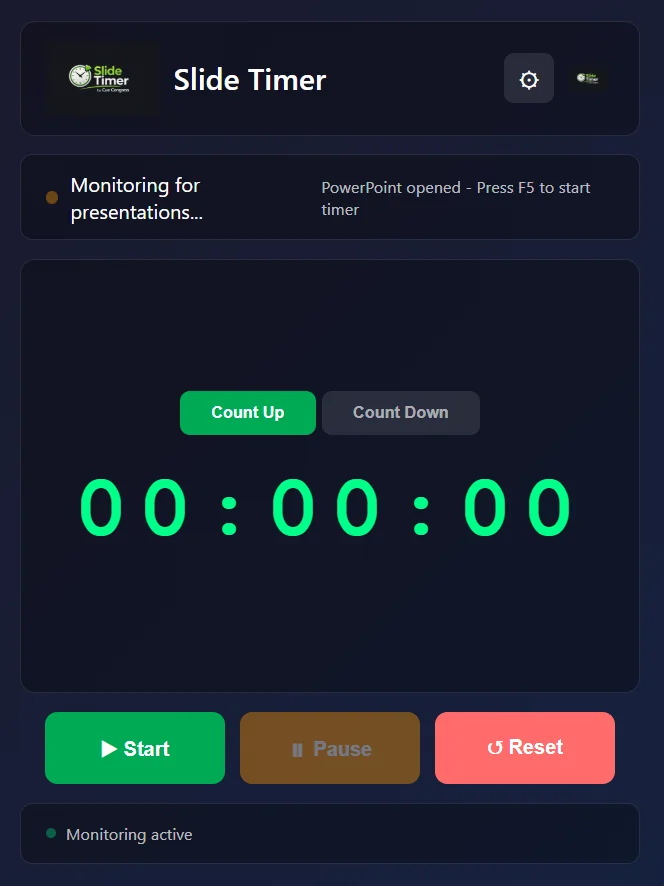
The Control Panel is your command center. It stays on your primary screen and is never shown to the audience.
What You See
- Status bar — shows the current state (Waiting, Monitoring, Detected, Timing) and which presentation was detected.
- Mode switch — toggle between Count Up and Count Down.
- Timer display — a large, easy-to-read clock.
- Controls — ▶ Start, ⏸ Pause, and ↺ Reset.
- ⚙ Settings and About buttons in the top-right.
Basic Controls
- ▶ Start — begins timing manually.
- ⏸ Pause / ▶ Resume — pauses and resumes without losing the elapsed time.
- ↺ Reset — returns the timer to zero and resumes monitoring for the next presentation.
4. The Two Timer Windows
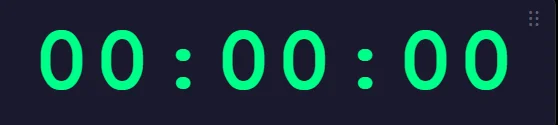
Slide Timer shows two identical floating clocks, so both the presenter and the audience can keep time.
- Speaker Timer — appears on your primary monitor, positioned near the top-right so the presenter can glance at it.
- Audience Timer — appears centered on your second monitor for the room to see.
Both windows are always on top of other applications (including a fullscreen slideshow), have no borders for a clean look, and can be moved and resized freely.
Showing & Hiding
In Settings → Timer Visibility, you can hide either window independently — for example, hide the Speaker Timer if you only want the audience to see it. The button toggles between Hide and Show.
Moving the Windows
Click and drag anywhere on a timer window to reposition it. Each window remembers where you put it.
5. Count Up & Count Down
Count Up
Counts elapsed time from 00:00:00 upward. Use this when you simply want to know how long a talk has been running.
Count Down
Counts down from a target time toward zero. Click Count Down, then set the Target Time in minutes and seconds.
- Click the Count Down button.
- Enter the target time (for example, 20 minutes 0 seconds).
- Start the timer — it counts down toward 00:00:00.
Typing a new target time updates the timer straight away; press Enter to leave the field.
Countdown Presets
The buttons under the timer set a Count Down time with one click — 5, 10, 15, 20 and 30 minutes to start with. Clicking one switches to Count Down with that time (not while the timer is running).
- Add — type a Target Time and click + Preset next to it.
- Reorder — drag a preset to a new place.
- Edit — double-click it, type the new time, and press Enter (Esc cancels).
- Remove — click its ×; an Undo appears for a few seconds.
6. Auto-Detection
Slide Timer can watch for presentations and start timing on its own. Configure this in Settings → Auto-Detection.
How It Works
- PowerPoint — the timer starts when you enter Slideshow or Presenter View (press F5). Simply having PowerPoint open in edit mode does not start it.
- PDF readers — supports Adobe Acrobat/Reader, Foxit, SumatraPDF, and PDFs opened fullscreen in Edge or Chrome. The timer starts when the PDF goes fullscreen (Ctrl + L or F11).
Settings
- Auto-start timer when presentation detected — turn the whole feature on or off.
- Monitor PowerPoint — watch for PowerPoint slideshows.
- Monitor Adobe Acrobat/Reader — watch for fullscreen PDFs.
When the Show Ends
At the bottom of the control panel, When show ends decides what happens when a slideshow or full-screen PDF that started the timer closes:
- Keep running (default) — the timer carries on.
- Stop timer — the timer pauses and the time stays on screen. Resume or Reset as usual.
7. Time Alerts & Overtime
Visual Time Alerts
In Count Down mode, the timer changes color as the deadline approaches (when Enable time alerts is on):
- Normal Plenty of time remaining
- Orange 3 minutes remaining
- Red 1 minute remaining
Overtime
With Enable overtime in countdown mode turned on, the timer keeps counting past zero and shows the overrun as a red negative time (for example, -00:01:30). This is great for showing a speaker exactly how far over they have run. Turn it off if you want the timer to simply stop at 00:00:00.
8. Appearance: Color & Glow
Timer Color
In Settings → Timer Color, pick any color for the timer digits. A live preview shows the chosen color. The color applies to both timer windows and the Control Panel display.
Glow Effect
Enable glow effect adds a soft neon halo around the digits for a polished, high-visibility look on stage. Turn it off for a flat, minimal appearance.
9. Timer Size & Position
Setting the Size
There are two ways to resize the floating timers:
- Slider — in Settings → Timer Window Size, drag the slider and click Save. The width and matching height are shown live.
- Drag the edges — grab any edge or corner of a timer window and drag to resize. The new size is remembered automatically.
The timer text scales automatically to fill the window, so it stays crisp and readable at any size.
10. Start with Windows
Turn on Start Slide Timer with Windows in Settings → Startup to have the app launch automatically every time you log in. This is handy for fixed installs in conference rooms where the timer should always be running.
11. License Management
Your license activates Slide Timer on one device. The bottom of the Settings window shows your license key (masked for privacy) and a button to deactivate.
Deactivating a Device
To move your license to a different computer, click Deactivate this device in Settings. After confirming, this device is released and the activation screen reappears — you can then activate Slide Timer on another machine with the same key.
12. Checking for Updates
Click the About button (logo icon, top-right of the Control Panel) to see your current version and a Check for Updates button. If a newer version is available, Slide Timer shows the new version number and opens the download page for you.
Slide Timer also checks for updates automatically a few seconds after launch and lets you know if one is ready.
13. Troubleshooting
Timer doesn't start automatically
- Make sure the relevant monitor option is on in Settings → Auto-Detection (Monitor PowerPoint / Monitor Adobe Acrobat/Reader).
- For PowerPoint, the timer starts only in Slideshow or Presenter View — press F5. Edit mode does not start it.
- For PDFs, the reader must go fullscreen (Ctrl + L or F11). Opening a file that is already fullscreen won't trigger it — toggle out and back in.
- If you turned off Auto-start timer, use the ▶ Start button.
I only see one timer
- Check Settings → Timer Visibility — the Speaker or Audience timer may be hidden. Click Show.
- Confirm Windows is set to Extend displays (Win + P). On a single screen both timers appear on the same display.
The timer is hidden behind my slideshow
- The timers are set to stay on top automatically. If they slip behind, reset the timer or toggle the window's visibility off and on in Settings.
My timer size keeps changing
- This was fixed in v1.2.7. Make sure you are on the latest version (About → Check for Updates). Saving settings no longer resets your timer size.
License won't activate
- Activation and deactivation need an internet connection. Check your network and try again.
- Make sure the key is entered exactly as provided, with no extra spaces.
- If the key is already in use on another device, deactivate it there first.